AI agent with tool calling architecture diagram
An AI agent is a loop around a language model. Instead of answering in one shot, the model decides which tool to call, the application runs that tool, and the result goes back to the model until it can give a final answer.
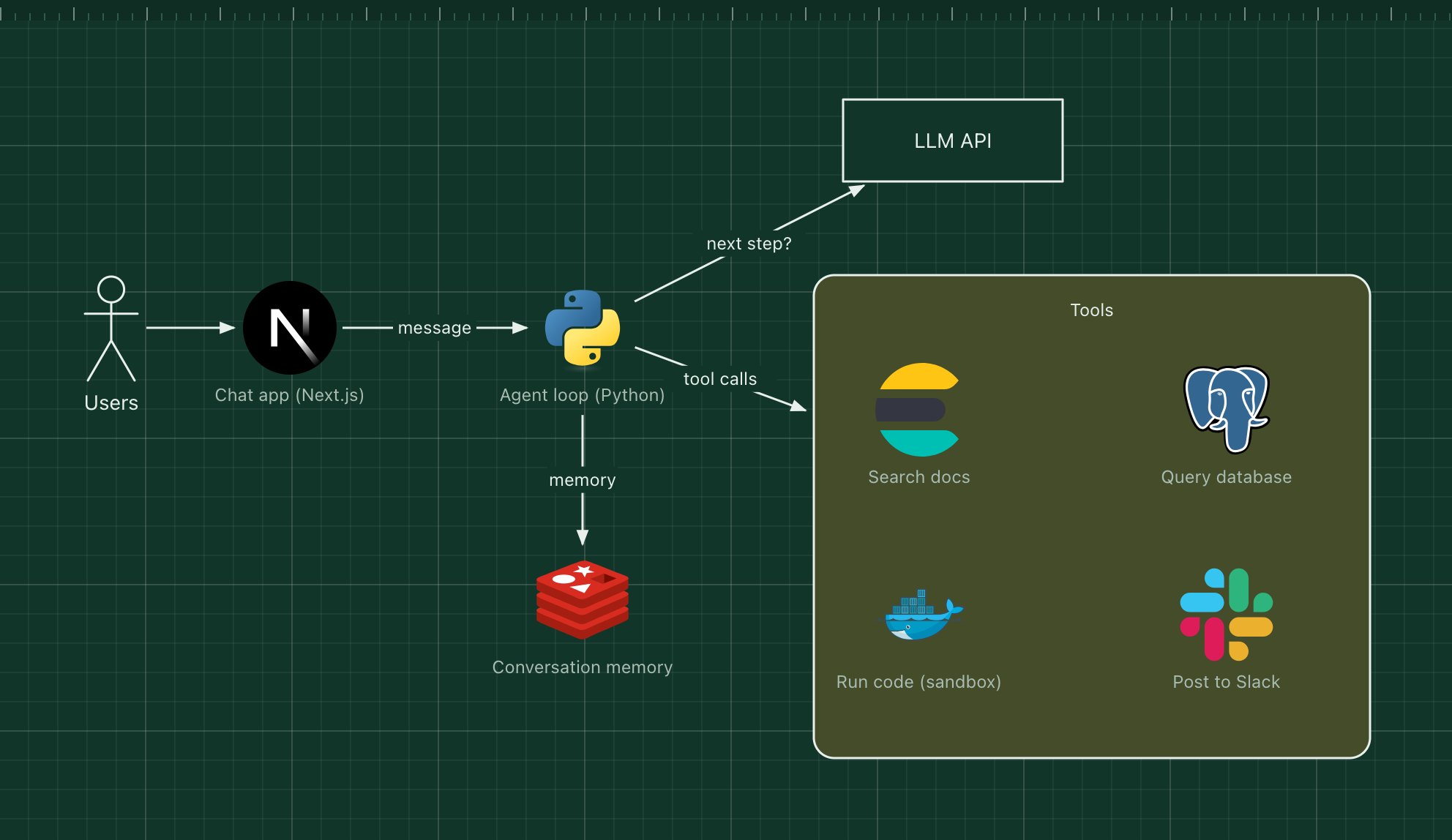
This template shows that loop with four common tools: document search, a read-only database query, a sandboxed code runner and a chat notification, plus memory so the agent remembers earlier turns.
What's in the diagram
- Chat app (Next.js)
- Shows the conversation and, ideally, each step the agent takes.
- Agent loop (Python)
- Sends the conversation and the tool definitions to the LLM, executes the tool it picks, and repeats.
- LLM API
- A model that supports tool calling (function calling) and returns either a tool request or a final answer.
- Tools
- Plain functions with a name, a description and a JSON schema for their arguments.
- Code sandbox
- Runs generated code in an isolated container with no network and strict time limits.
- Conversation memory (Redis)
- Stores the message history and intermediate tool results for the session.
How a request flows through it
- The user sends a request, for example "How many orders failed yesterday, and why?".
- The agent sends the conversation and the tool list to the LLM.
- The model asks for a tool, such as a database query with specific arguments.
- The agent validates the arguments, runs the tool and appends the result to the conversation.
- The loop repeats until the model returns a final answer, or a step limit is reached.
When to use this architecture
Use it when a task needs several steps or live data the model cannot know, such as internal APIs, databases or files. Keep tools narrow and read-only by default, cap the number of steps, and log every tool call: most agent failures are wrong arguments or loops, and the logs are how you find them.
Ways to adapt the template
- Require human approval before tools that write or send anything.
- Add a retrieval tool backed by the RAG chatbot template's vector store.
- Trace each step with OpenTelemetry to see cost and latency per tool.
- Split specialist sub-agents into their own zones for larger systems.
How to customise this diagram
- Open your copy. Click Open in the editor. The template opens as your own project, saved in your browser. Nothing is uploaded.
- Rename the parts. Double-click any label, such as “Chat app (Next.js)”, type your own name, then click outside it. Arrow labels work the same way.
- Swap a technology. Select Chat app (Next.js) and press Delete. Search the icon palette for the technology you use, drag it onto the board, and reconnect it by dragging its arrow handle onto the next component.
- Add what is missing. Drag more icons or shapes onto the board. Shapes include databases, servers, users, queues, mail, alerts and scheduled jobs.
- Adjust the zones. Zones are rounded rectangles with a fill colour. Resize them to fit, pick another colour from the selection bar, and press [ to send a zone behind the components.
- Export or share. Save the diagram as a PNG with the camera button, download the project as JSON with Export, or copy a link with Share.