RAG chatbot architecture diagram
Retrieval-augmented generation (RAG) lets a large language model answer questions about documents it was never trained on. Before calling the model, the application searches your own content for the most relevant passages and puts them into the prompt.
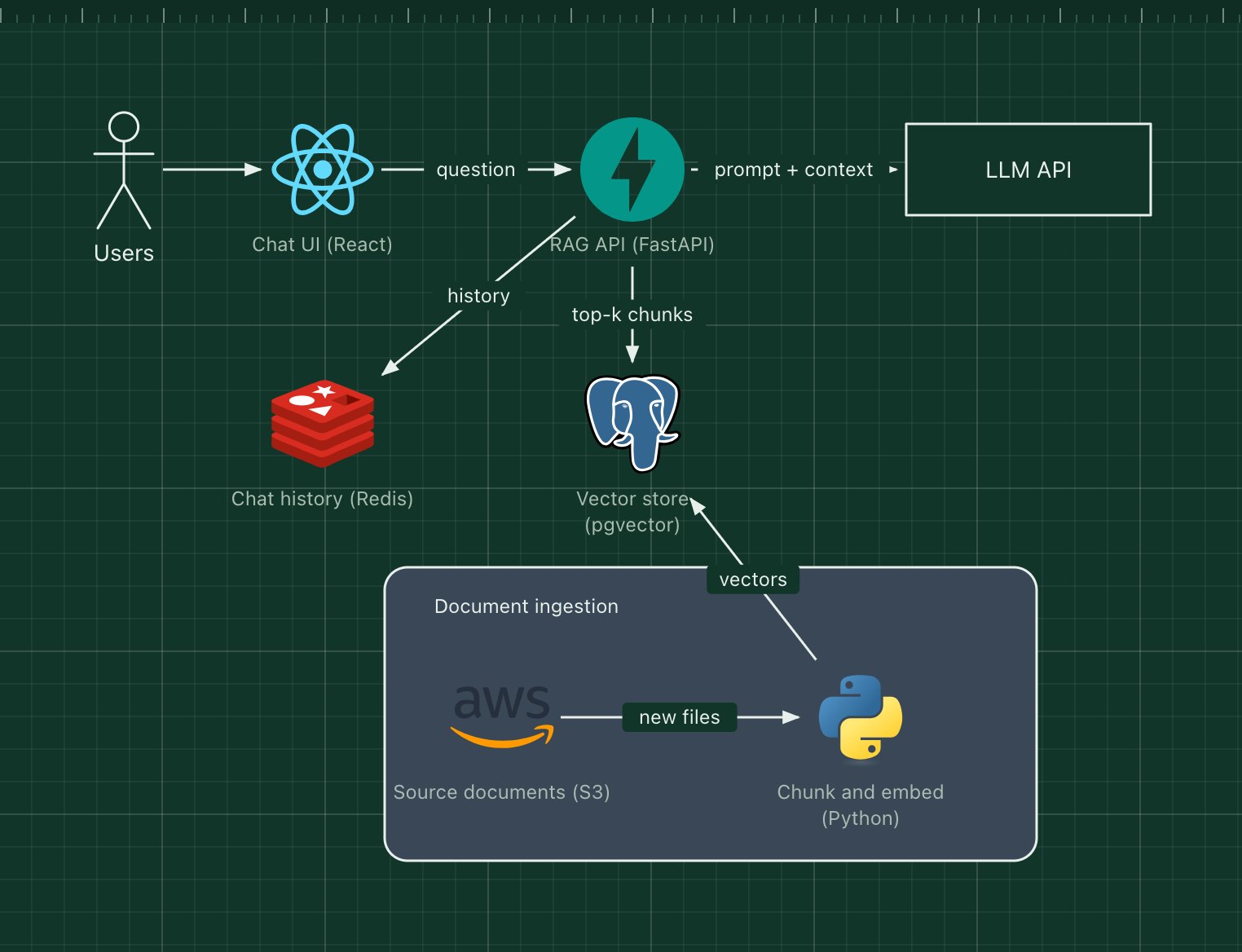
This template shows the two halves of a typical RAG system: an ingestion pipeline that turns documents into vectors, and a query path that retrieves the closest chunks and asks the LLM to answer from them.
What's in the diagram
- Chat UI (React)
- Sends the user's question and streams the answer back token by token.
- RAG API (FastAPI)
- Orchestrates each request: embeds the question, retrieves chunks, builds the prompt and calls the model.
- Vector store (pgvector)
- PostgreSQL with the pgvector extension stores one embedding per chunk and finds the nearest ones to a query.
- LLM API
- A hosted or self-hosted language model that writes the answer from the supplied context.
- Chat history (Redis)
- Keeps recent turns so follow-up questions have context.
- Document ingestion
- A Python job splits new documents into chunks, embeds them with an embedding model and writes the vectors.
How a request flows through it
- The user asks a question in the chat UI.
- The API embeds the question and asks the vector store for the most similar chunks.
- It combines those chunks, the recent chat history and the question into one prompt.
- The LLM generates an answer grounded in the retrieved text, and the API streams it back.
- Separately, whenever documents change, the ingestion job re-chunks and re-embeds them.
When to use this architecture
Use it when answers must come from a specific body of knowledge, such as product docs, policies or support tickets, that changes too often to fine-tune a model on. Retrieval quality decides answer quality, so most of the work goes into chunking, metadata and evaluation rather than the model call.
Ways to adapt the template
- Swap pgvector for a dedicated vector database if you have tens of millions of chunks.
- Add a reranking step between retrieval and the prompt.
- Cite sources by returning the chunk IDs with the answer.
- Add an evaluation job that replays saved questions after every ingestion change.
How to customise this diagram
- Open your copy. Click Open in the editor. The template opens as your own project, saved in your browser. Nothing is uploaded.
- Rename the parts. Double-click any label, such as “Chat UI (React)”, type your own name, then click outside it. Arrow labels work the same way.
- Swap a technology. Select Chat UI (React) and press Delete. Search the icon palette for the technology you use, drag it onto the board, and reconnect it by dragging its arrow handle onto the next component.
- Add what is missing. Drag more icons or shapes onto the board. Shapes include databases, servers, users, queues, mail, alerts and scheduled jobs.
- Adjust the zones. Zones are rounded rectangles with a fill colour. Resize them to fit, pick another colour from the selection bar, and press [ to send a zone behind the components.
- Export or share. Save the diagram as a PNG with the camera button, download the project as JSON with Export, or copy a link with Share.