Mobile app backend with Firebase architecture diagram
Firebase is Google's backend-as-a-service for mobile and web apps. Instead of running servers, the app talks directly to managed services for sign-in, data, files and notifications, with security rules deciding who can read and write what.
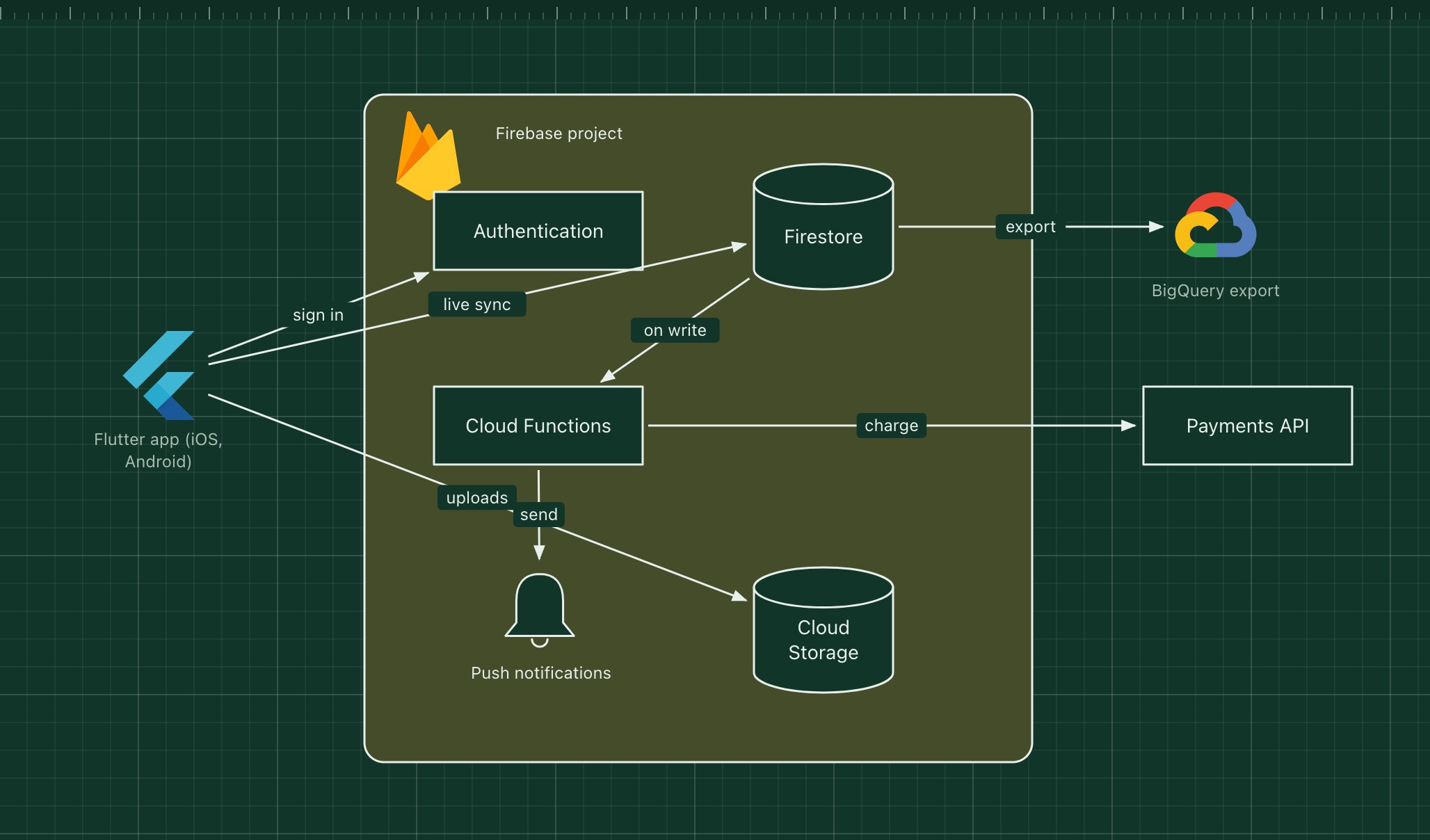
This template shows a Flutter app on Firebase, with Cloud Functions for the logic that must not run on the device, such as payments and notifications.
What's in the diagram
- Flutter app
- One codebase for iOS and Android, using the official Firebase SDKs.
- Authentication
- Email, phone and social sign-in. Every request carries the user's ID token.
- Firestore
- A document database that syncs changes to connected devices in real time and works offline.
- Cloud Storage
- Stores photos and files uploaded by users, protected by the same security rules.
- Cloud Functions
- Server-side code triggered by database writes, HTTP calls or schedules.
- Push notifications
- Firebase Cloud Messaging delivers notifications to the user's devices.
How a request flows through it
- The user signs in, and the app receives an ID token.
- The app writes a new document, such as an order, directly to Firestore; security rules check the user may do so.
- The write triggers a Cloud Function, which charges the payment API with a secret key the app never sees.
- The function updates the order and sends a push notification to the user.
- Firestore data is exported to BigQuery for analytics.
When to use this architecture
Use it for mobile apps built by small teams that want real-time sync and offline support without running servers. Costs grow with reads and writes, and complex queries are limited, so model data around the screens that read it.
Ways to adapt the template
- Use App Check to block requests that do not come from your app.
- Move heavy back-office logic to a regular service on Cloud Run.
- Add Remote Config for feature flags.
- Swap Flutter for native Swift and Kotlin apps; the backend does not change.
How to customise this diagram
- Open your copy. Click Open in the editor. The template opens as your own project, saved in your browser. Nothing is uploaded.
- Rename the parts. Double-click any label, such as “Flutter app (iOS, Android)”, type your own name, then click outside it. Arrow labels work the same way.
- Swap a technology. Select Flutter app (iOS, Android) and press Delete. Search the icon palette for the technology you use, drag it onto the board, and reconnect it by dragging its arrow handle onto the next component.
- Add what is missing. Drag more icons or shapes onto the board. Shapes include databases, servers, users, queues, mail, alerts and scheduled jobs.
- Adjust the zones. Zones are rounded rectangles with a fill colour. Resize them to fit, pick another colour from the selection bar, and press [ to send a zone behind the components.
- Export or share. Save the diagram as a PNG with the camera button, download the project as JSON with Export, or copy a link with Share.